Chapter 3
Start-to-Zero Alignment & Multitrack Delivery
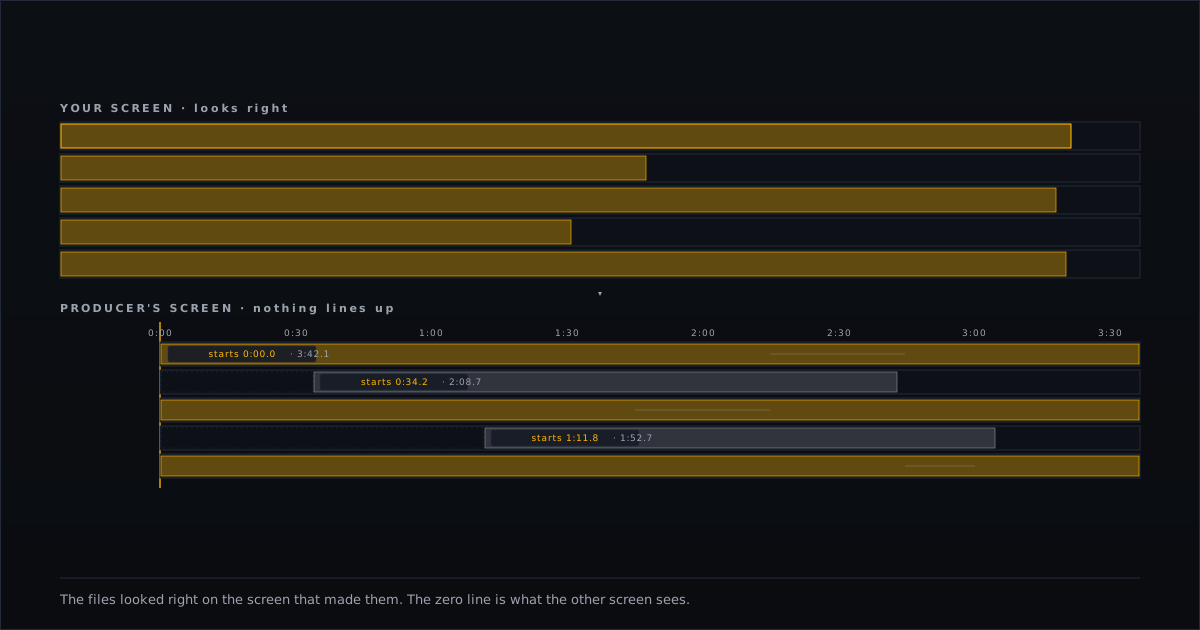
Multitrack delivery is how a singer sends recorded vocals to a producer. It has one rule that has nothing to do with how well you sing: every file starts at zero and runs the full song length — the whole song, silence included.
A singer who trims the silence and sends just the good parts delivers files that each look fine on their own. They land on the producer's screen with nothing lined up. The batch comes back. The rule is a fact each file either meets or does not. A file's start point and length are two of the facts the Certifier reads from it.
What Is Multitrack Delivery?
Multitrack delivery means sending each vocal part as its own file: the lead, a double (a second take of the same line, layered to thicken the sound), the harmonies, the ad-libs. One file per part. Together, those files are multitracks — what a producer works from.
A stem is different. Strictly, a stem is a group of parts summed into one file: all the lead vocals in one file, all the harmonies in another. A producer who wants to move or replace a single part cannot, because the parts are already glued together. Multitracks keep every part separate; stems do not. Working professionals use "stems" loosely, so the strict meanings are worth keeping straight.
Why Alignment Matters
A producer does not listen to your files one at a time the way you do. They drop all of them into one session — one project, one shared timeline — and place them on tracks side by side. On that timeline, position is everything: the lead sits on top of the backing track, the harmony beside it, everything starting from the same zero point.
If your files start at different points, the producer sees a screen full of clips — pieces of audio — none of them lined up. Every one has to be dragged into place before a single bar gets mixed.
The flaw is invisible on the screen that made it. On your screen, each clip sits neatly at the left edge of its own track. The file plays fine, sounds fine, opens fine. It is not broken. It is missing one fact — where it sits in time — and that is the fact the producer's timeline runs on.
This is why delivery rules get enforced silently and strictly. One producer put it on record: "If I ask for stems and receive individual tracks I'm kicking the project right back." A producer who kicks back a project over the wrong file type is not going to drag a dozen misaligned clips into place either.
How Delivery Fails
1. Trimmed regions
The most common failure is the one that feels considerate. You export each file as just the parts where you sing — the clip, not the whole timeline — and leave the silence out. Smaller files, less clutter, less of the producer's time. But the silence was the one thing the producer needed, and the export tool did exactly what it was told.
A singer described the result: "It doesn't export the entire tracks with silence. It only exports the regions and things don't lineup." Each file now starts at its own first note instead of zero — a different point for every file — and the producer has no way to know where any part belongs.
2. The wrong deliverable
A producer asks for multitracks and receives stems, or the reverse. However good the performance, the files cannot be used as delivered: the take is fine, the grouping is wrong, and the whole batch has to be re-exported. The fix costs nothing — confirm which one the producer means before you export.
3. Inconsistent lengths
Two files can both start at zero and still not line up if they end at different points. A lead that runs the full three minutes next to a double cut short at two will drift apart the moment they are placed together. The rule is not just "start at zero." It is "start at zero and run the full song length." The length is half the fact.
The Standard
The rule is not new. Engineers have put it in delivery guides, and producers have said it in forums. One guide states it plainly: "Every file starts at the same point… If you trim each file to just the bits where the instrument plays, you've made yourself look efficient and made the engineer's job much harder. Don't trim. Export the full song length for every track." What no one had done was number it, scope it to vocal delivery, and attach a check. That is what this standard does.
Every file starts at zero and runs the full song length.
That is a property of each file, not a relationship between files. A file begins at the very start of the timeline — 0:00, the zero point — and runs to the end of the song, including every bar where you are not singing. The silence is part of the file. It is the information that tells the producer's software where your voice sits in time.
When each file obeys the rule on its own, alignment follows by itself. If the lead, the double, and the harmony each start at zero and run the full song length, they are already in position the moment they land in a session — a phrase at 0:34 sits at 0:34 in every file. The per-file rule is the cause; alignment is the consequence; the check reads the cause.
Format is the second fact. Producers filter for one line: "24-bit / 48kHz WAV • Dry / raw • Fully comped." The part this chapter's check reads is the format — a WAV file, not an MP3, at 24-bit depth and a 48 kHz sample rate. The zero-point rule and the format are the two things a single file can prove about itself.
Naming Your Files
Name every file so a stranger can place it without opening it. Start with a number that puts the parts in order, then say what the part is: 01 Lead, 02 Double, 03 Harmony. No spaces, no slashes. A producer sorting eight files should find the lead from the name alone.
Stated plainly: naming is delivery discipline, not a measured standard. The Certifier does not check file names — it reads what is inside the file, not what it is called. A clear name does not pass a check, and a vague name does not fail one. But the producer who has to open eight files to find the lead is the same producer deciding whether to call you again.
What the Check Can and Cannot Tell You
The check reads one file at a time. From that one file it reads three facts: the duration — how long the file runs; the start point — where the audio actually begins; and the format — bit depth, sample rate, WAV or MP3. All three come from the file header and the audio itself.
The check cannot compare files against each other. It reads one file, and alignment is a relationship between files — a single-file check has no second file to measure against. It cannot tell you whether your five files line up.
That limit is also the cleanest statement of what alignment is. Alignment is not something a file contains; it is something true of the batch. The division of labor is exact: the tool measures each file; you compare the readings. If all five files show the same length and a start point of zero, you did the aligning, and the check confirmed it — one file at a time.
A check only means something when its limits are stated.
How to Check Your File
You do not need new software. You need to check the files you already made against the standard.
Run one file through the Certifier. A wrong export setting produces the same flaw in every file, so one file is enough to tell you whether your export habit is broken. If the length runs the full song and the audio starts at zero, that file carries the rule. If the length falls short or the audio starts late, you found the failure before the producer did. Check the rest one at a time; if each one passes, they line up with one another on their own.
Exporting the full song length from zero is a setting that exists in every major DAW. The step-by-step walkthrough of where that setting sits in each one is in the Reel Kit. This chapter gives you the standard and the check.
The Certifier reports your file's length, its start point, and its format — no signup. Run your file here — 90 seconds, free.